mtnr

A tech blog with fries on the side

Category: tech

  • How to set the timezone in Ubuntu

    You may list all available timezones via the following command:

    timedatectl list-timezones

    To update the timezone of your machine use

    sudo timedatectl set-timezone Europe/Berlin

    After this the current settings can be inspected like so:

    timedatectl
                   Local time: Sat 2024-06-01 12:46:55 CEST
               Universal time: Sat 2024-06-01 10:46:55 UTC
                     RTC time: Sat 2024-06-01 10:46:55
                    Time zone: Europe/Berlin (CEST, +0200)
    System clock synchronized: yes
                  NTP service: active
              RTC in local TZ: no

    Have a look at https://www.digitalocean.com/community/tutorials/how-to-set-up-time-synchronization-on-ubuntu-20-04 for a more detailled explanation.
  • Adding an administrative account in Ubuntu

    If, for some reason, no default administrative user was created during the server installation process, the first thing I do is to create a personal user and deactivate the root user, if necessary.

    Usually, a pristine Ubuntu installation comes with a default user that was added to the group of sudoers.

    However, when acquring a server with my current hoster, root was equipped with a public key for accessing the server via SSH after the setup was completed.

    So the first order of business after logging in as root was to create a new user as follows:

    adduser <USERNAME>

    Replace <USERNAME> with the name of the user (i.e., in my case timo) and follow the onscreen instructions.

    In order to enable the user to install software and allow for other maintanance tasks, add it to the group of sudoers with the following command as root:

    usermod -aG sudo <USERNAME>

    When you are already logged on as another sudo user, you may issue the same command prefixed with sudo.

    And that’s all there is to it. Now you can login with your new account and use the sudo command when you must perform maintance or other administrative tasks like installing software for example.

    For more details on usermanagement (e.g., how to disable the root user) I highly reccomend the official documentation on the matter.

  • Warp: The terminal I didn’t know I needed

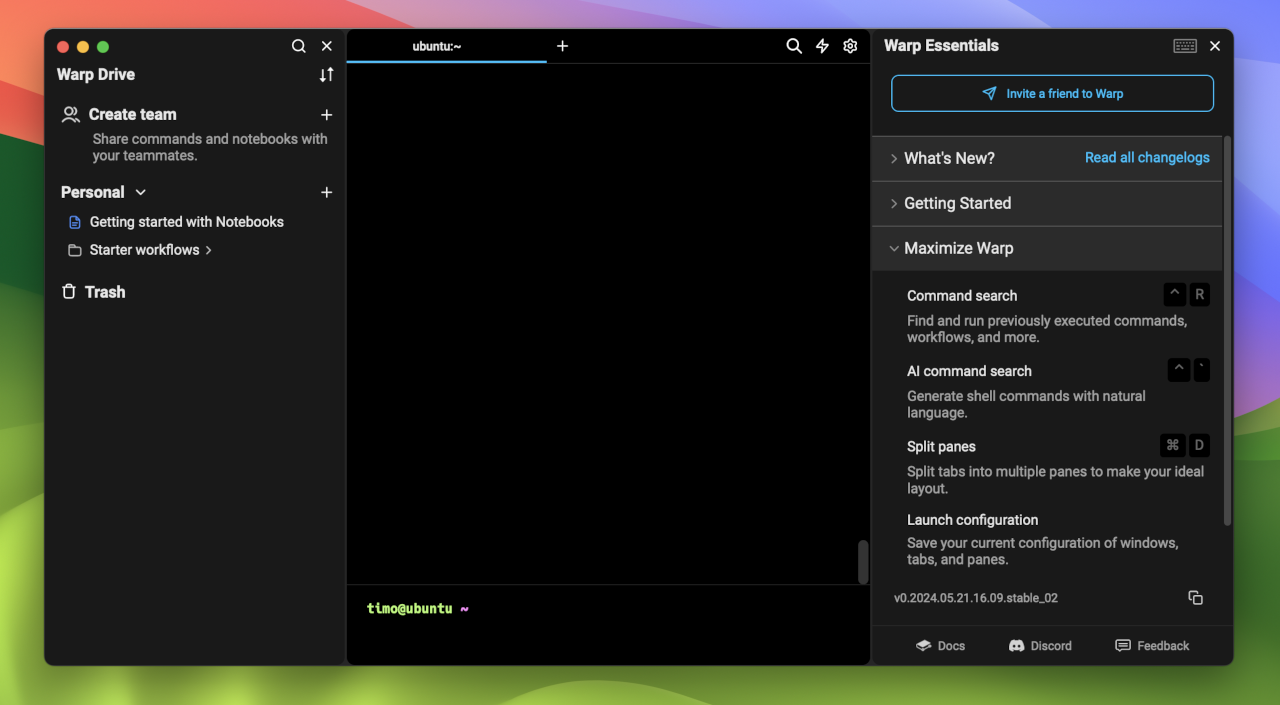
    Warp: The terminal I didn’t know I needed

    Quick reminder to myself to never use another terminal other than Warp again. Check it out here.