mtnr

A tech blog with fries on the side

Tag: linux

  • Install Java on macOS Using SDKMAN!

    Update: I previously recommended using Homebrew and jEnv for managing Java installations, but I’ve since discovered SDKMAN! and find it to be a superior solution. It’s more streamlined, handles multiple SDKs beyond just Java, and doesn’t require Homebrew as a dependency.

    Managing multiple Java versions on macOS can be challenging, especially when different projects require different JDK versions. SDKMAN! (Software Development Kit Manager) offers an elegant solution that goes beyond just Java management.

    What is SDKMAN!?

    SDKMAN! is a tool for managing parallel versions of multiple Software Development Kits on Unix-based systems. Originally known as GVM (Groovy enVironment Manager), it provides a simple command-line interface for installing, switching, and managing various JVM-related tools. What makes SDKMAN! particularly attractive is that it works seamlessly on macOS, Linux, and Windows Subsystem for Linux (WSL).

    Installing SDKMAN!

    Installation is straightforward. Open your terminal and run:

    curl -s "https://get.sdkman.io" | bash

    After installation completes, either restart your terminal or run:

    source "$HOME/.sdkman/bin/sdkman-init.sh"

    Verify the installation by checking the version:

    sdk version

    Installing Java

    With SDKMAN! installed, you can now easily install Java. First, let’s see what versions are available:

    sdk list java

    This command displays all available Java distributions and versions. To install a specific version, use:

    sdk install java 17.0.13-tem

    You can install multiple versions and switch between them easily:

    sdk install java 21.0.5-tem
    sdk use java 21.0.5-tem

    To set a default Java version globally:

    sdk default java 17.0.13-tem

    Beyond Java: Other Development Tools

    One of SDKMAN!’s biggest advantages over jEnv is its ability to manage numerous other development tools. You can install build tools, frameworks, and other SDKs with the same simple commands:

    • Gradle: sdk install gradle
    • Maven: sdk install maven
    • Kotlin: sdk install kotlin
    • Scala: sdk install scala
    • Spring Boot CLI: sdk install springboot
    • Groovy: sdk install groovy

    To see all available SDKs:

    sdk list

    Useful Commands

    Here are some handy SDKMAN! commands to know:

    • sdk current – Show currently active SDK versions
    • sdk current java – Show currently active Java version
    • sdk upgrade – Upgrade all installed SDKs
    • sdk uninstall java 17.0.13-tem – Remove a specific version
    • sdk env – Switch to project-specific versions defined in .sdkmanrc

    Why SDKMAN! Over jEnv?

    While jEnv served me well, SDKMAN! offers several advantages:

    • No Homebrew dependency – SDKMAN! is self-contained
    • Manages more than just Java – one tool for your entire JVM ecosystem
    • Simpler installation and configuration
    • Active development and community support
    • Built-in update mechanism for both the tool and SDKs

    SDKMAN! has become my go-to tool for managing Java and related development tools on macOS. Its simplicity and comprehensive SDK support make it an excellent choice for Java developers working across multiple projects with varying requirements.

    Happy coding!
  • Upgrading from RSA to ED25519

    Just out of curiosity, ascertain what keys you have on your machine by issuing the following command:

    for key in ~/.ssh/id_*; do ssh-keygen -l -f "${key}"; done | uniq

    Generate new ED25519 key pair

    ssh-keygen -o -a 256 -t ed25519 -C "$(hostname)-$(date +'%d-%m-%Y')"

    Executing the command above will generate a new pair of Ed25519 keys. When asked, provide a strong password for the key pair.

    $ ~/.ssh/id_ed25519     #Private key
    $ ~/.ssh/id_ed25519.pub #Public key

    Let’s have a brief look at each option.

    -o will use OpenSSH format for the new keys
    -a specifies the number (amount) of key derivation rounds (KDF)
    -t specifies the type; in this case Ed25519
    -C adds an optional comment that helps with identifying the key

    Using the new keys

    Now, simply add the public key to the authorized keys of the machine you would like to login to. In order to retrieve the public key, use the following command and copy & paste the output of said command.

    cat ~/.ssh/id_ed25519.pub

    Sprinkle a bit of convenience on top

    Now if you’re like me and are using a Mac, you may use the Keychain to store your password, so you don’t have to always type it out when logging in to your server via ssh.

    I added the following to ~/.ssh/config:

    Host mtnr
        HostName mtnr.cloud
        UseKeychain yes
        IdentityFile ~/.ssh/id_ed25519

    Now, when calling ssh mtnr, I can ssh into my server without specifying anything extra like e.g. which pair of keys to use for authentication and, I only have to type out the password once. All subsequent attempts will use the password stored in my Keychain.

    Neat!

    Further reading/sources:

  • Roll Your Own Network

    One stop shop for rolling your own network. You’ll find tutorials on how to run a network, server, desktop, mobile, and manage certificates and backups.

    It’s a work in progress according to themselves, but definitely worthwhile checking it out!

    https://roll.urown.net

  • Better backups with BorgBase

    I recently posted an article on how I used rsnapshot for backing up this blog. This worked fine but I was having two major issues with the approach.

    1. Backing up the database’s internal file storage

    Generally speaking, it’s bad practice to backup a database’s internal file storage as it could change mid-backup. A better approach would be to create a database dump which will result in a consistent snapshot.

    2. Backing up volumes in archives

    With the current approach of creating compressed tars of the Docker volumes, each time a full backup will be created. This uses up more space than necessary.

    Borg to the rescue

    Borg is an easy to use deduplicating archiver that comes with compression and encryption out of the box.

    You can find a detailed manual and more info at https://www.borgbackup.org/.

    Since I have to backup protected resources, I installed it with privileged access.

    sudo apt update
    sudo apt install borgbackup

    At the time of writing this you may find the installation instructions under https://borgbackup.readthedocs.io/en/1.2.8/installation.html.

    At this point we could go ahead and set up a (remote) repository and start backing up our data which would result in smaller backups than the previously used tar archives.

    However, we still need a way to automatically backup the database as well as a convenient way to automate or backups.

    Automate backups with Borgmatic

    Borgmatic also comes with an exhaustive documentation that can be found at https://torsion.org/borgmatic/docs/how-to/set-up-backups/.

    I’ve opted for a root install using apt.

    sudo apt update
    sudo apt install borgmatic

    Now that we have installed Borgmatic, let’s create a config file in /etc/borgmatic/config.yaml.

    sudo borgmatic config generate

    Now, before editing the configuration file to our needs, let’s set up a remote repository with BorgBase first.

    Remote backups with BorgBase

    Sign up and receive 10 GB and 2 repositories for free forever. No credit card required. Just a place to keep your backups.

    https://www.borgbase.com

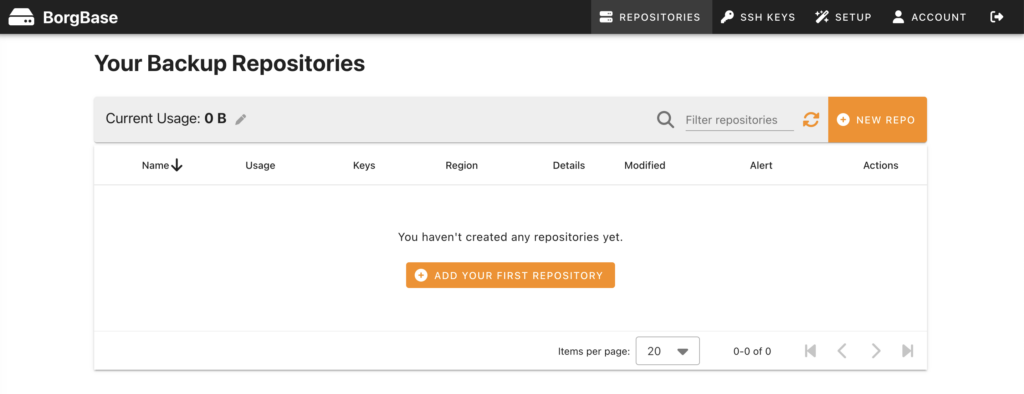
    After setting up your free account it looks sth. like this.

    BorgBase welcome screen

    Before you may add a repository, you have to add a ssh key, first. BorgBase makes it very easy to add a key and guides you all the way. Here’s how I created my key.

    ssh-keygen -t ed25519 -C "<EMAIL>" -f ~/.ssh/id_ed25519_borgbase

    Please replace <EMAIL> with your own mail address. The above will generate a new key and place it under .ssh in your home folder under the name of id_ed25519_borgbase. In addition it will generate a corresponding public key. This is what you must provide BorgBase with in order to create and access a repository. Type the following to access it from your terminal:

    cat ~/.ssh/id_ed25519_borgbase.pub

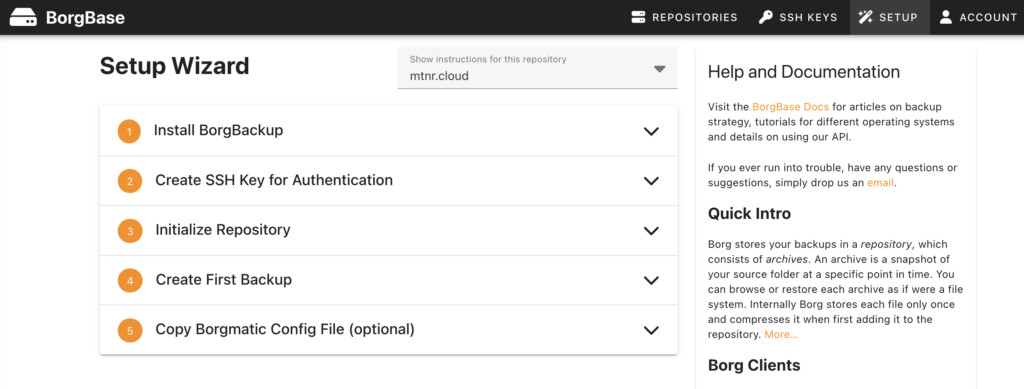
    After setting up your repository you will be presented with a wizard to set up your server for communicating with it.

    BorgBase Setup Wizard

    Now it’s time to edit the borgmatic config file from earlier. It’s pretty self explanitory.

    I’m including everything under /etc, my home folder as well as the Docker volume for this blog.

    source_directories:
      - /etc
      - /home/<USER>
      - /var/lib/docker/volumes/<VOLUME_NAME>

    There is a detailed explanation on how to include database dumps in your backups available at https://torsion.org/borgmatic/docs/how-to/backup-your-databases/.

    I added the following snippet to my config.

    mariadb_databases:
      - name: <DB_NAME>
        hostname: 127.0.0.1
        port: 3306
        username: <USER>
        password: <PASSWORD>

    After your done, you may validate your config with the following command.

    sudo borgmatic config validate

    The last thing to do is initializing the repository.

    sudo borgmatic init --encryption repokey

    Test your setup

    Before editing your crontab, it makes sense to test your setup manually.

    sudo borgmatic create --verbosity 1 --list --stats

    If everything works as expected, you should add a call to borgmatic to the root user’s crontab.

    sudo crontab -e

    Conclusion

    And now you can lie back and relax. Depending on your crontab settings your incremental backups will be created automatically and will be securely encrypted stored off site.

    Nice!

  • How to set the timezone in Ubuntu

    You may list all available timezones via the following command:

    timedatectl list-timezones

    To update the timezone of your machine use

    sudo timedatectl set-timezone Europe/Berlin

    After this the current settings can be inspected like so:

    timedatectl
                   Local time: Sat 2024-06-01 12:46:55 CEST
               Universal time: Sat 2024-06-01 10:46:55 UTC
                     RTC time: Sat 2024-06-01 10:46:55
                    Time zone: Europe/Berlin (CEST, +0200)
    System clock synchronized: yes
                  NTP service: active
              RTC in local TZ: no

    Have a look at https://www.digitalocean.com/community/tutorials/how-to-set-up-time-synchronization-on-ubuntu-20-04 for a more detailled explanation.

  • Adding an administrative account in Ubuntu

    If, for some reason, no default administrative user was created during the server installation process, the first thing I do is to create a personal user and deactivate the root user, if necessary.

    Usually, a pristine Ubuntu installation comes with a default user that was added to the group of sudoers.

    However, when acquring a server with my current hoster, root was equipped with a public key for accessing the server via SSH after the setup was completed.

    So the first order of business after logging in as root was to create a new user as follows:

    adduser <USERNAME>

    Replace <USERNAME> with the name of the user (i.e., in my case timo) and follow the onscreen instructions.

    In order to enable the user to install software and allow for other maintanance tasks, add it to the group of sudoers with the following command as root:

    usermod -aG sudo <USERNAME>

    When you are already logged on as another sudo user, you may issue the same command prefixed with sudo.

    And that’s all there is to it. Now you can login with your new account and use the sudo command when you must perform maintance or other administrative tasks like installing software for example.

    For more details on usermanagement (e.g., how to disable the root user) I highly reccomend the official documentation on the matter.